

Sending Email Updates Across Brands
How to send a campaign to lists across brands.
This article describes how to send a global update to lists under all (or many) brands at once. This setup can be useful for franchises or companies that send industry updates or promotions to each brand/sub-account.
To send an account level update or promotion to lists under all (or some) brands, you need to:
- Setup a blog with an RSS feed. You can use Blogger.com, internal CMS, or any platform that will produce an RSS feed. You will be using this feed to store content for your global updates. Blog content doesn't have to be simple text, you can paste an HTML email template into a blog post on Blogger, for example. The promotional content can also include merge tags, that will be processed when the content of the feed is inserted into a campaign for sending.
- Set up an RSS-to-email campaign under each brand/sub-account, that needs to send your update, pointing to your global/shared RSS feed. The campaigns under the brands can have their own custom send time, so the automatic emails can go out at different time of the week/day. This can be helpful for several reasons:
- If it's possible to have a subscriber to be on the lists for multiple brands (locations), then it's best to use a different send time/day per location, so the subscribers can't get identical looking emails from more than one brand/location.
- It's best to spread out sending volume across days of the week (or month) to avoid ANY sending volume spikes, especially for infrequent senders (e.g. monthly updates or promotions). Sending volume spikes can cause deliverability issues with many mailbox providers, especially Microsoft domains (Hotmail, Outlook, MSN, Live).
- To spread out website traffic or orders (for retail businesses), to reduce stress on the internal systems or processes (e.g. phone orders, support).
How To Manage an RSS-to-email Campaign.
A basic RSS template in our library (that gets pre-loaded on a new RSS-to-email campaign) looks like this:
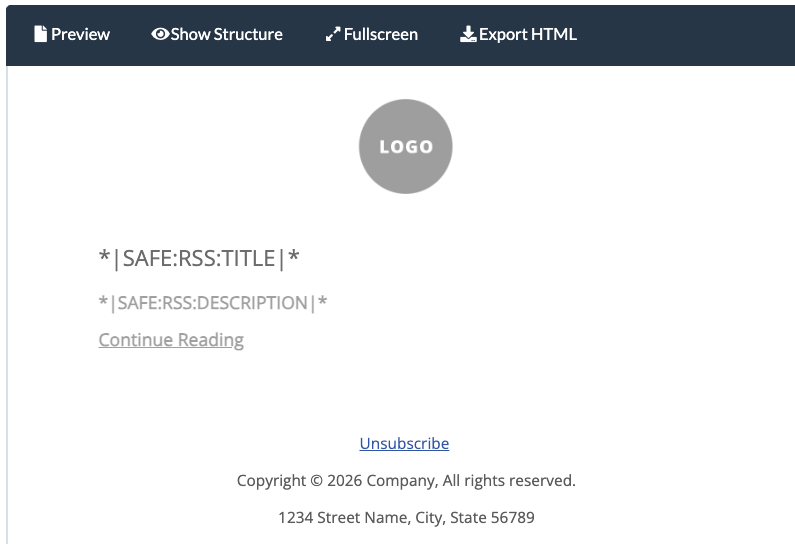
You can use this template as a starting point for yours or simply add RSS:description merge tag into your existing email template. There is also another template in the library that uses multiple RSS items, which is useful if you want to show past updates in your template.
Using a Shared Template
If you have a large number of brands/sub-accounts you can create a master template under your main corporate brand, save it as a shared template, then use that shared template on new campaigns.
A shared email template can use merge tags for both, subscriber level fields (e.g. First Name), and brand properties. Below is an example of a Brand Properties page.
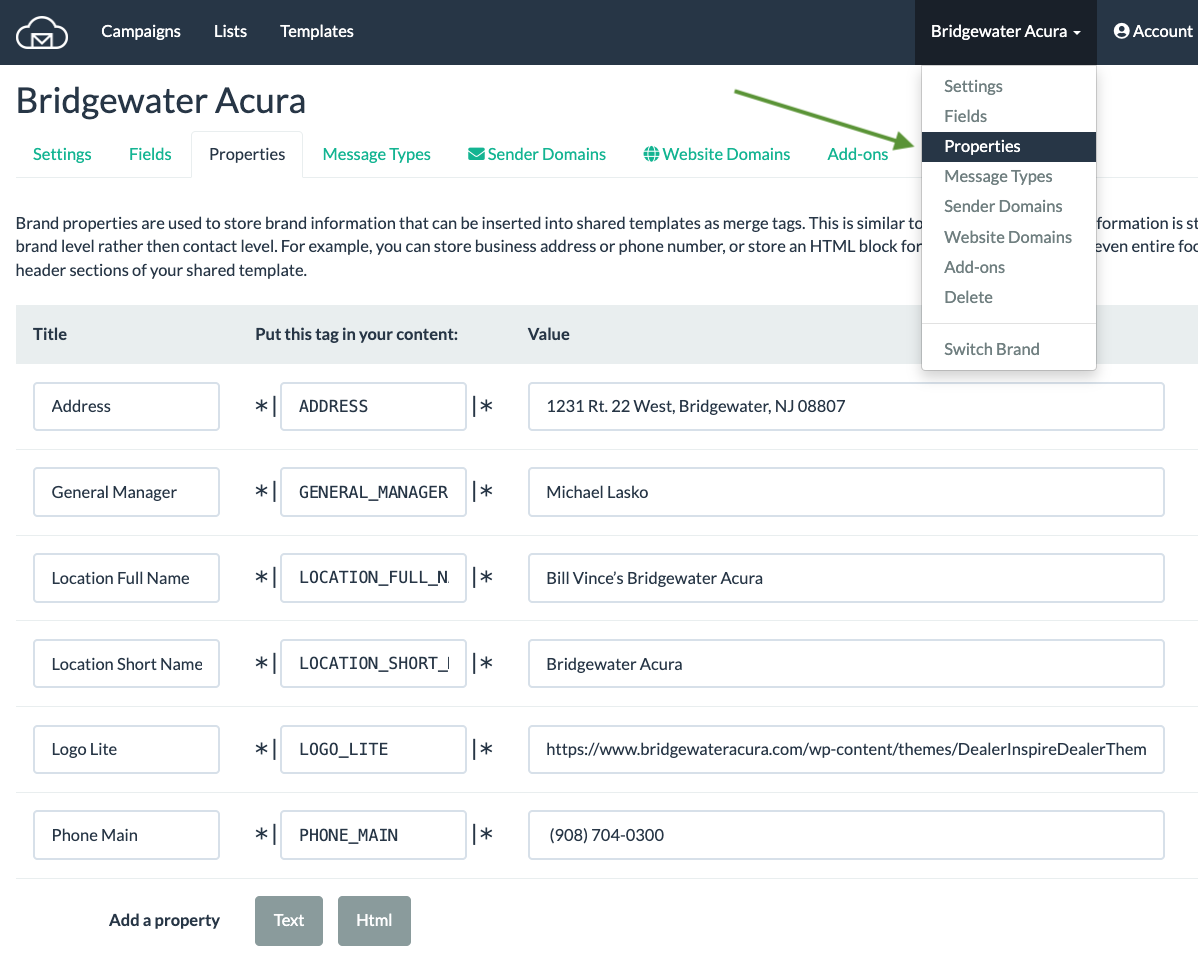
Brand properties can store brand-level information like brand name, address, website, phone number, logo (stored as an image URL).
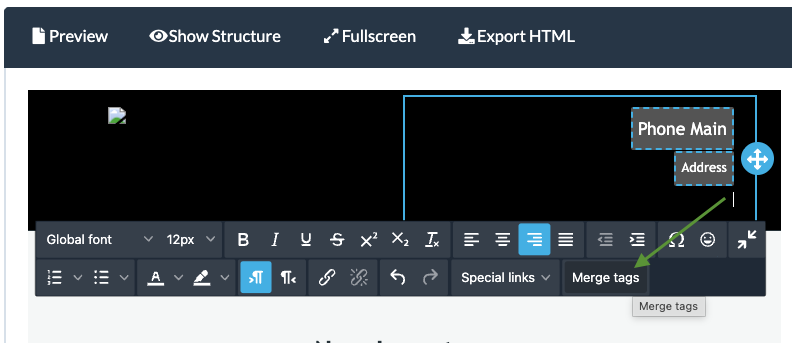
To insert a merge tag into your template using drag-n-drop editor place your cursor where you want the tag to be added, then select Merge Tags in the editor navigation:
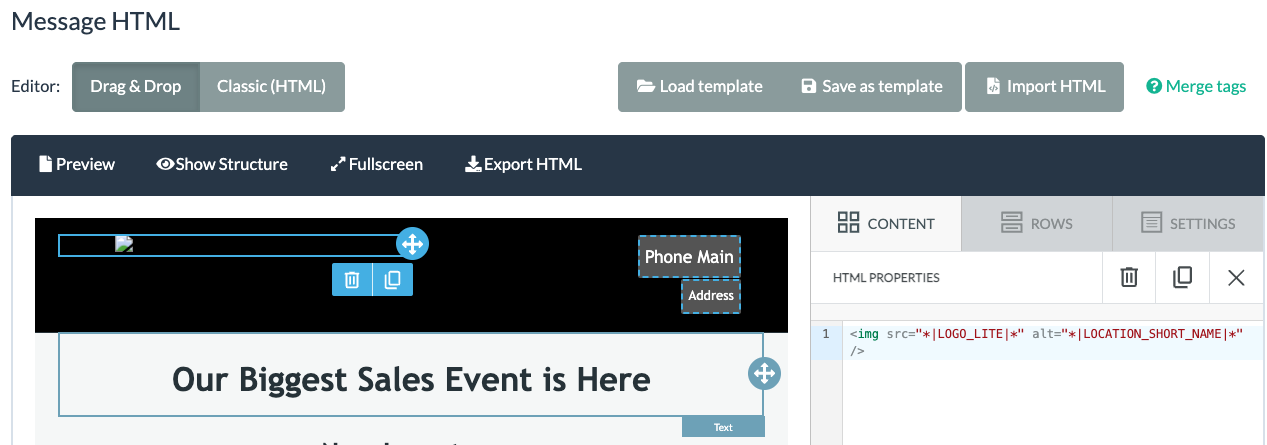
To insert a brand specific image into a shared template you would need to use an HTML module for your logo, with a code for an image using merge tags for your brand level properties. It would look like this:
Tip: Use a standard prefix for brand property names, to aid recognition. For example, you can use names like Store Name, Store Address, or Client Name, Client Website. This way, in the drag-n-drop template editor you can see all brand level merge tags grouped and separate from subscriber level data (custom fields).
A shared template in the RSS-to-email campaign should have standard header/footer that wouldn't change across campaigns. The content that changes would be inserted using a special RSS:DESCRIPTION tag to insert a post body into email template, while RSS:TITLE can be used for a subject line in combination with any prefix or suffix text, including optional additional merge tags.
Examples of a subject line and preview using merge tags:
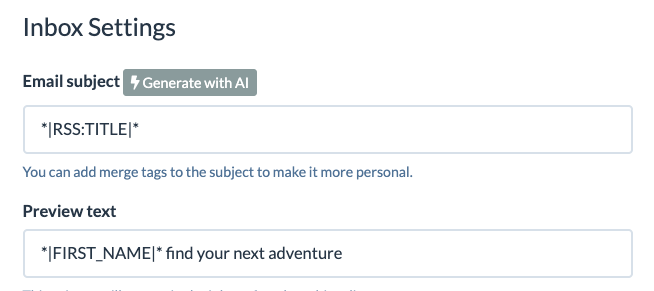
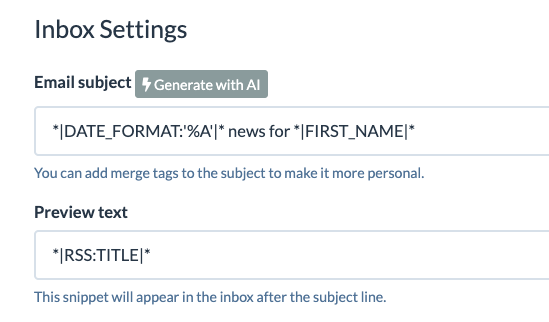
The formatted system date merge tag in the example above would generate a day of the week, and second merge tag would use a subscriber level field to personalize it. So the output would be something like "Monday news for John".
Read more about RSS merge tags.
Still have questions? Reach out via live chat for assistance or schedule a demo.
Updated 27 days ago