

Analytics and Reporting
Analytics and Reporting
There are several types of reports available, and you can also configure a web hook for sending data to your application to sync up your engagement events.
Campaign Reporting
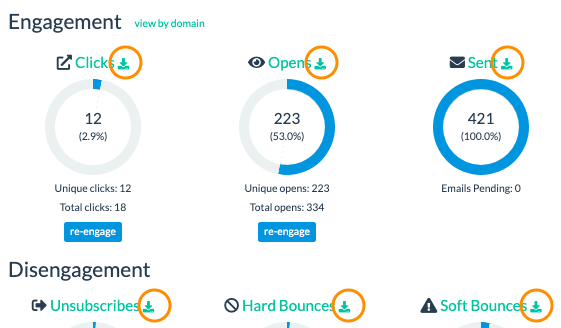
Below is a screenshot of the top of the Campaign Reporting screen - you can click on stat headers (Clicks, Opens) to view contacts list or click on the icon circled in orange to download the data as a CSV file. Below this section you can also see Top Links section and engagement graph that starts as 48 hours and changes to 30 days after 48 hours pass.
How Does BigMailer Track Campaign Opens?
BigMailer tracks opens and clicks on all campaigns by default, but there is an option to turn off tracking on each campaign.
We track opens on all html-based campaigns by embedding an invisible, 1-pixel image in your campaign. When a contact opens your email and chooses to display the images in your email, that graphic is downloaded from our server and it is recorded as an open.
If a contact chooses not to display images, their open may still be tracked if they click on a link contained in your campaign. Link tracking will need to be enabled for this option.
It is not possible to track opens for plain text emails.
Sometimes you may see initial opens come in very quickly after campaign is sent. That happens because some email clients pre-fetch emails and some programs scan emails (images and links) for security reasons and both produce open events.
Campaign Engagement Reporting by Domain
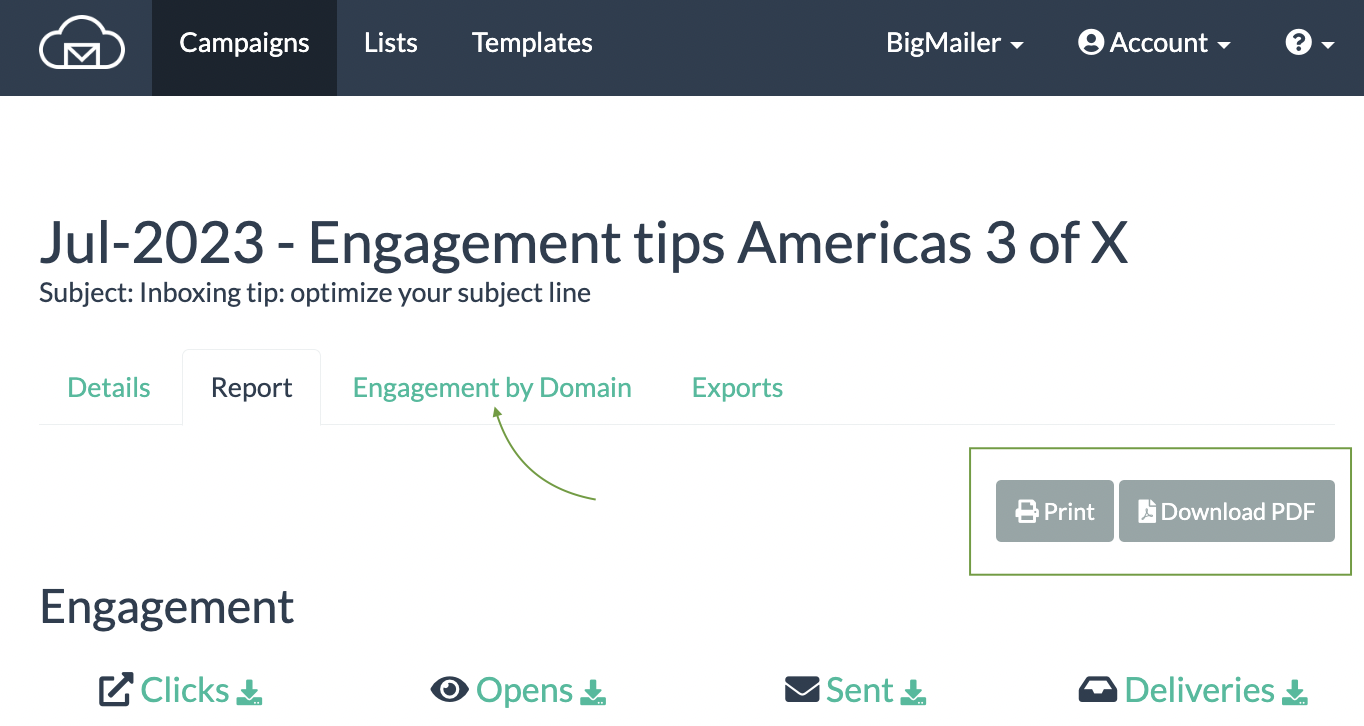
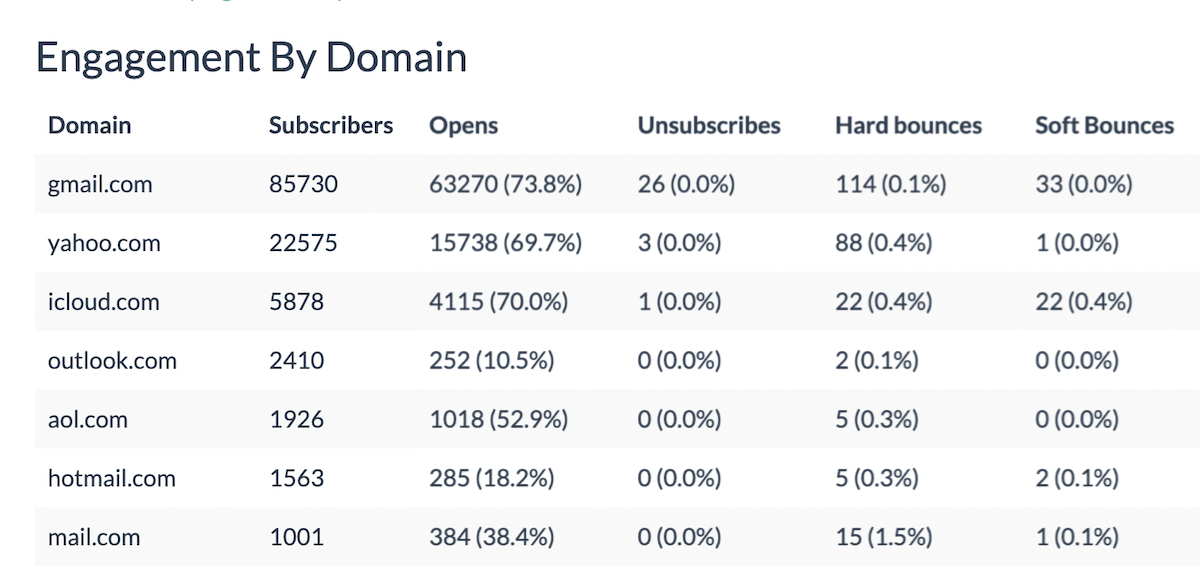
You can check campaign engagement by mailbox provider to help you understand and optimize your engagement. This helps you understand your engagement beyond averages and help spot and prevent issues with specific providers.
For example, you may discover that some providers have a much higher soft bounce rate (icloud.com, me.com due to shared storage with music) or high complaint rate (comcast.net) and may want to filter those out from early campaigns as you warmup you sender volumes and establish your sender reputation.
Report Across Campaigns
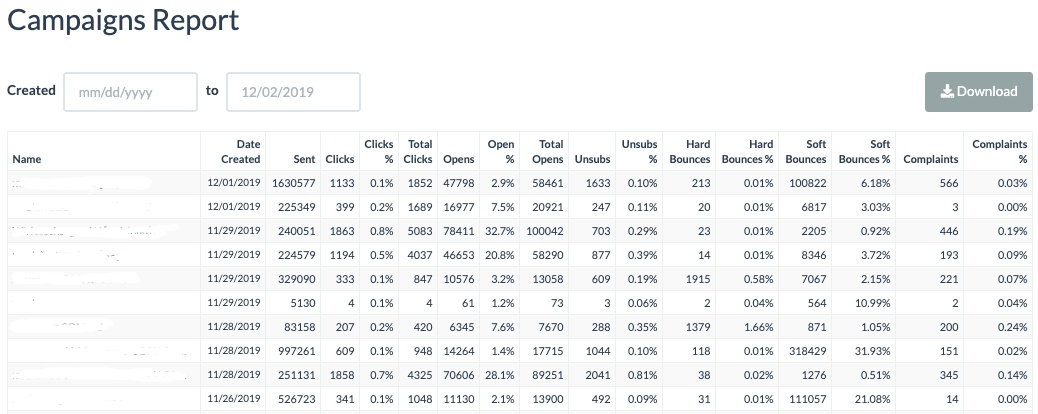
To see all campaign stats and to download a report for all bulk campaigns go to the Campaigns tab in the header, then look for "Report" button on top right:
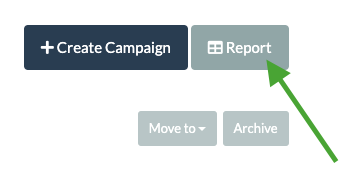
Once on reporting page you can set date range and download a CSV file of the campaign engagement data.
Bounces, Unsubscribes, and Complaint Reporting
BigMailer automatically handles bounces, unsubscribes, and complaints. Those contacts are not deleted from your Lists, but rather tagged with status for appropriate action. When a contact hard bounces or complaints, they are not sent emails again. An unsubscribe stops receiving future emails unless they are deleted and then re-added to the list so keep this in mind when re-importing Lists with duplicate contacts. Best to not delete those records.
By default, BigMailer treats a contact as undeliverable after it soft bounces 5 times, but you control this setting on your Brand settings page. The most common reason for a soft bounce is an inbox full (others are rejections for attachments too large or provider service down), so consider your email frequency when changing this setting. The soft-bounces tend to go up during major internet outages (like the Gmail outage in 2021) or during popular vacation times like the week between Christmas and New Year.
You can export your hard bounces and complaints using segmentation, then download the exported CSV file and use it to delete those contacts in bulk by going to "Bulk Actions" button on the Lists page and selecting "Bulk Delete" from the menu. This action reduces your contacts total for billing purposes and good to do once every 6-12 months.
You can setup a custom webhook on your API page to receive events data from BigMailer - unsubscribes, complaints, and bounces. See documentation for more info on webhook setup.
Newsletter Archives
You have the option to enable an archive page, for listing you bulk (only) campaigns that don't have archived status. Here is how to enable the archive page:
- Go to your Brand name link in the header and expand the menu
- Click on "Add-ons"
- Click on "Enable" button next to "Public Campaign Archive Page"
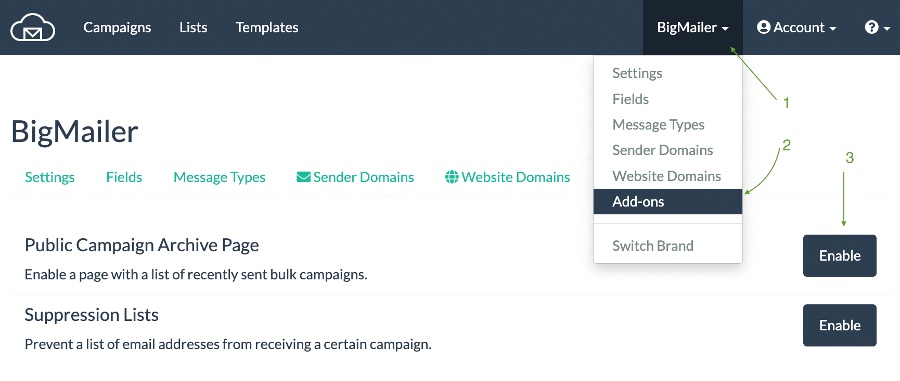
Once enabled, you will see your archive page link on any campaign report page.
Quick Tips:
- When you use links to past emails from the archive page they will not contribute to your campaign engagement stats (unlike the one you would grab from View Browser link).
- Consider linking to the archive page on your email signup module to show your subscribers what they get.
Updated 3 months ago