

Bulk/Marketing Campaign
About Bulk/Marketing/Newsletter/Broadcast Campaign (with AB testing)
Marketing emails are also often referred to as promotional, bulk, broadcast, newsletter, or email blast. You can start a new campaign by clicking Create button on the Campaigns main dashboard and then selecting a campaign type or just use a "Copy" option on an older campaign, which will create a new copy with all fields and content copied over.
Your entire workflow for creating a bulk/newsletter campaign lives on one screen.
Adding an Unsubscribe Link
BigMailer platform requires and enforces the presence of an unsubscribe link on all Bulk/Marketing campaigns.
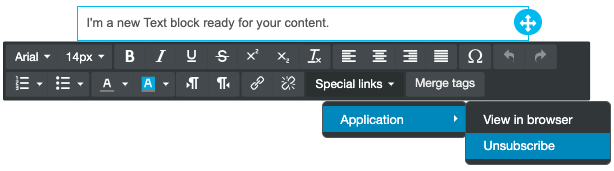
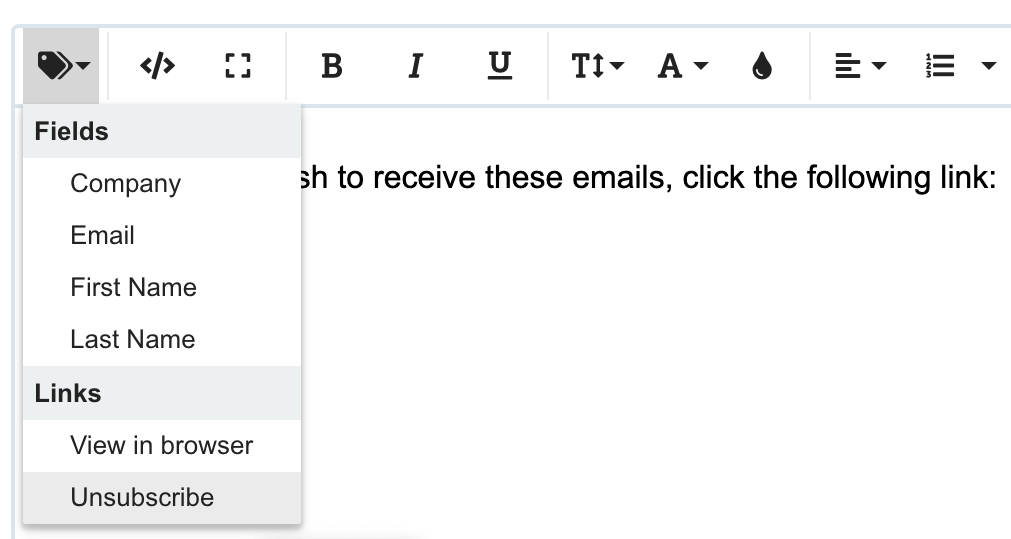
Here is how to add Unsubscribe link into your email template:
In Drag-n-Drop Editor (while on Text element):
In Classic Editor:
To lower a complaint rate and improve email deliverability and inbox placement it may be beneficial to use the word "Unsubscribe" or "Opt-out" instead other alternatives like "Manage Preferences" or other less explicit instruction. Mailbox providers scan the email body for the presence of the unsubscribe link so it is best to make it easier to locate. Avoid using "click here" phrase as unsubscribe link, it's considered a spam phrase and can increase your spam score.
If you have many different email collection sources you can use extra text around your unsubscribe link similar to "You have received this email because [reason or method of getting on the list]. If you no longer want to receive these emails please Unsubscribe". This type of text can help subscribers recall how they may have gotten on your list, for example created an account on your site.
Tracking Options
By default, BigMailer automatically tracks opens and clicks on all campaigns. You have an option to turn off click tracking if you don't want to use our tracking link in your email. You also have an option to use a custom tracking domain (free self-service option available on all plans) that matches your sender email, which can greatly improve your email deliverability.
You also have an option to include additional parameters to your links, for example utm_ parameters for Google Analytics. Read our guide to email campaign tracking to explore this option further.
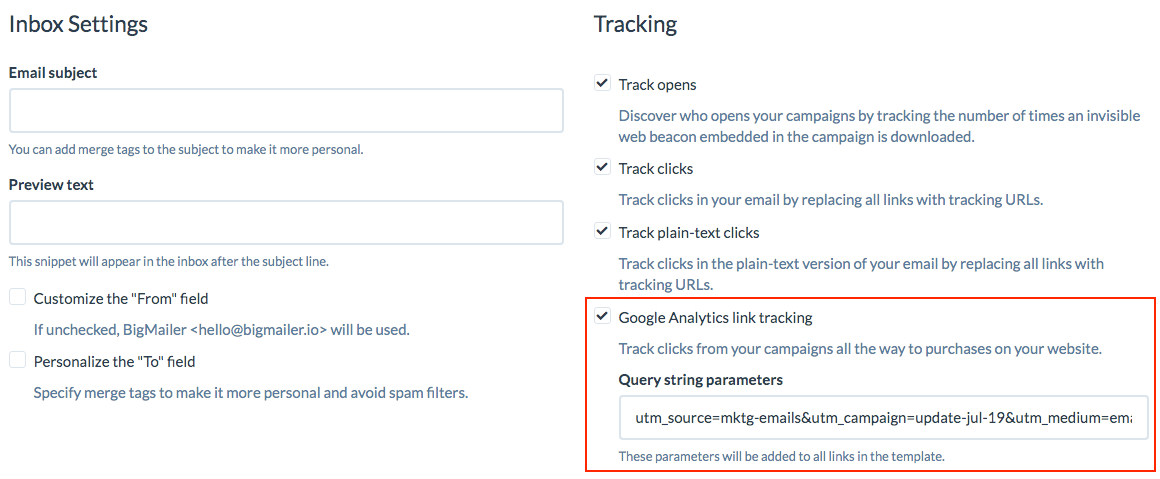
Google Analytics utm parameters tracking
Template Management
Template Management
You have the option to use your existing templates by copying HTML code into a Classic editor. With our Drag-and-Drop editor you can create advanced layouts and all templates are automatically mobile optimized. You also have an access to a library of stock images which you can use at no extra cost.
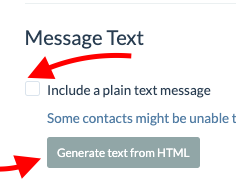
Including text version on every campaign is highly recommended as it helps with inbox placement. Some spam filters, like SpamAssassin, add points to spam score when text version is missing. You can generate the text version from the HTML version, just review the formatting and make sure that your unsubscribe link is still formatted properly and didn't get merged with any other elements.
Sending a Test Email
You can send a test email to yourself without scheduling a campaign by listing the email addresses in the field provided on Create/Edit Campaign screen.
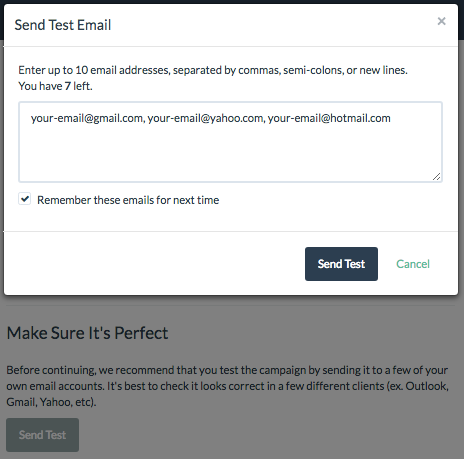
If you don't get your test email or it goes to Spam/Junk folder, there can be several reasons for it. Follow this list below to troubleshoot:
- If you used merge tags (aka variables) in your email but haven't specified default values for them in your settings the email sent will have placeholder text where the variable values should appear, e.g. |NAME|. This will cause the mailbox provider to identify email as spam and either block the email completely or place it into Spam/Junk folder. To address this, go to Fields under your brand and add sample values to the fields you have defined (see screenshot).
- Your sender domain configuration isn't complete. Please see "Account Setup" section for more info.
- You are missing the unsubscribe link in your email template, see section above.
- Your subject line or email body contains words that increase your email spam score. Please refer to this list of common Spam words. It's best to keep subject line short (3-4 words) and continue it in the preview field.
Volume Throttling
If you send more than 50000 emails per day then volume throttling may be of benefit, especially if you are a new sender and don't have a history of sending more than 10000 emails per day. If you would like to try this feature please reach out to us via chat and request the feature to be turned on on our account.
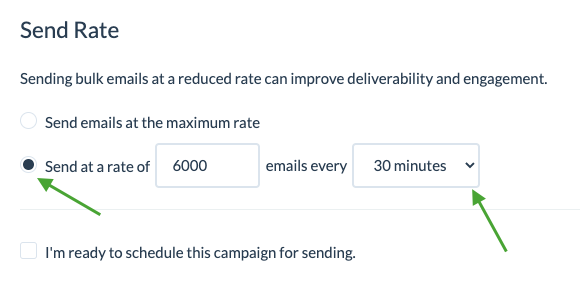
Once enabled, you can see the module above scheduling. We suggest to limit your sending to 3-6k per 15 min, for a list 50000-100000, and 20000 for a list over over 100k, for best deliverability and inbox placement and start around 6:30am (local time) on week days.
Scheduling or Sending Immediately.
To schedule your marketing (aka bulk) campaign you need to finalize all other fields first (campaign name, subject line) then scroll down to the bottom of the campaign screen. You will see an option to proceed with scheduling.
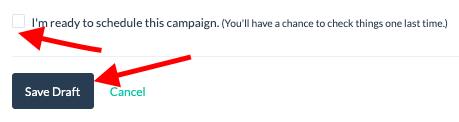
Once you click on the checkbox you will see an option to send the campaign immediately or to schedule it to be sent in the future.
Paused Campaign Due to High Bounce Rate
BigMailer platform pauses a campaign that reaches a bounce rate of 8% (platform default) to prevent your Amazon SES account from suspension. You can change the platform setting to be higher or lower in the range of 1-15% for each brand, just click on "Settings" button on the brand list page and expand "Advanced Options" section.
All email lists decay overtime - the older the list the higher the % of invalid email addresses.
A typical list decays at 2-3% per month, and B2B lists tend to decay at higher rate due to work email changes.
If your email list hasn't been engaged in 2+ months it's highly recommended to validate your list before uploading into BigMailer to reduce your bounce rate (should be below 5%), improve email deliverability and inbox placement. We have partnered with Bouncer (EU-based) and Emailable (faster verification for larger lists) to get our customers additional discounts.
Soft bounce rate doesn't negatively affect your Sender reputation but BigMailer includes it in the count against the threshold to give you an opportunity to review and filter our high bouncing domains to avoid paying for sending to those domains in case a provider is temporarily down (happens with small telecom companies).
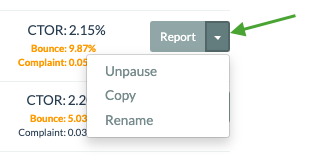
When your campaign is Paused you have 2 options:
-
Just Unpause to continue sending - may be practical if your campaign just started sending and the bounce rate is only slightly above the threshold. As more emails go out the bounce rate can fluctuate and go up/down.
-
Review your campaign engagement by domain report. If you see an opportunity to filter out high bouncing domains just copy the paused campaign and add segments on the new campaign to suppress high bouncing domains.
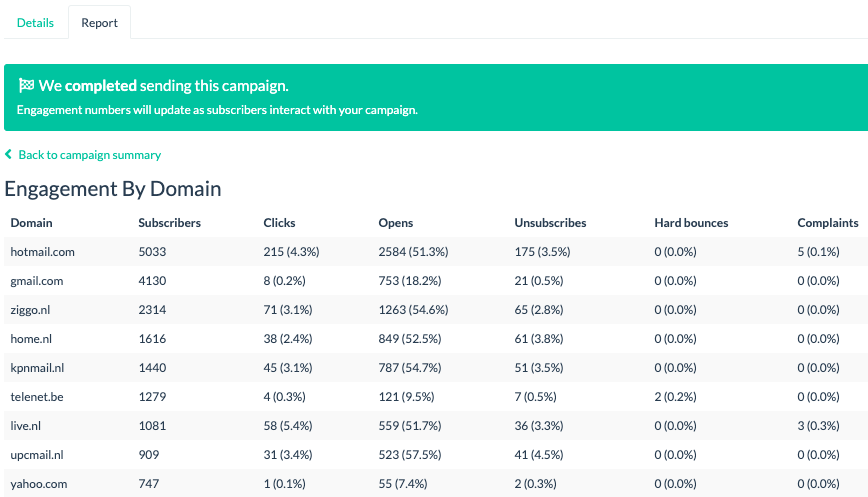
You can see which domains (mailbox providers) hard or soft bounce at high rate on your engagement by domain report.
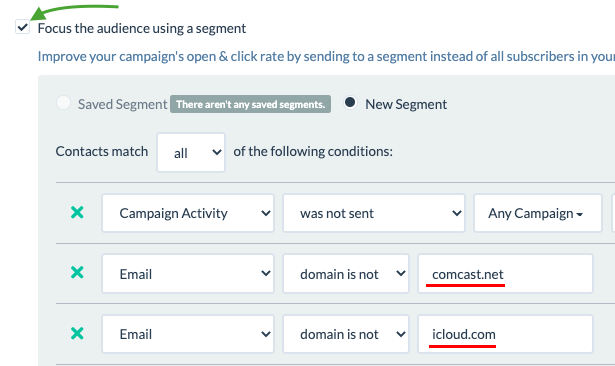
Here is an example of what the campaign engagement by domain report looks like.
Setting Up an AB Test
Create your bulk/marketing campaign the same way you usually do, for example by copying and modifying your older campaign.
TIP: You would need a good list size of high engagement to get statistically significant results.
Determine how many variations do you want to test and click on the A/B Test button next to the subject line label:
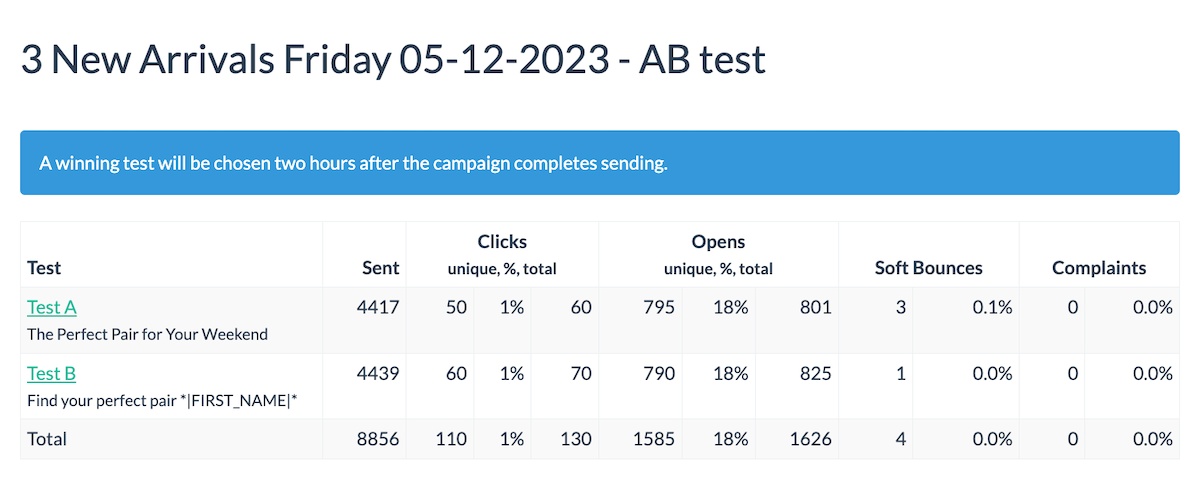
AB testing is only available on bulk campaigns, not on transactional or automations. You can test up to 3 subject lines on a single campaign.
A winner is selected at least 2 hours (or later) after campaign is sent, to allow for meaningful data collection, so you will only see raw data for the first 2 hours after a campaign is sent.
Newsletter Archives
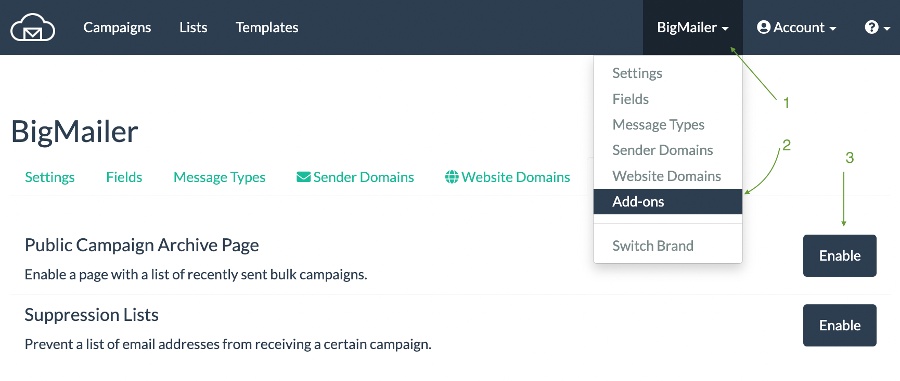
You have the option to enable an archive page, for listing you bulk (only) campaigns that don't have archived status. Here is how to enable the archive page:
- Go to your Brand name link in the header and expand the menu
- Click on "Add-ons"
- Click on "Enable" button next to "Public Campaign Archive Page"
Once enabled, you will see your archive page link on any campaign report page.
Quick Tips:
- When you use links to past emails from the archive page they will not contribute to your campaign engagement stats (unlike the one you would grab from View Browser link).
- Consider linking to the archive page on your email signup module to show your subscribers what they get.
- To "hide" some campaigns from the archive page, simply archive them from your main dashboard page.
Updated 3 months ago