

Shared Templates and Saved Rows
Ways to create new templates faster.
Shared template with all brands
Users with the Administrator role can share email templates across all brands within an account. Shared templates can be used as a starting point when creating new templates for different brands.
To help avoid branding mistakes, we recommend keeping shared templates generic and avoiding brand-specific logos, colors, or messaging.
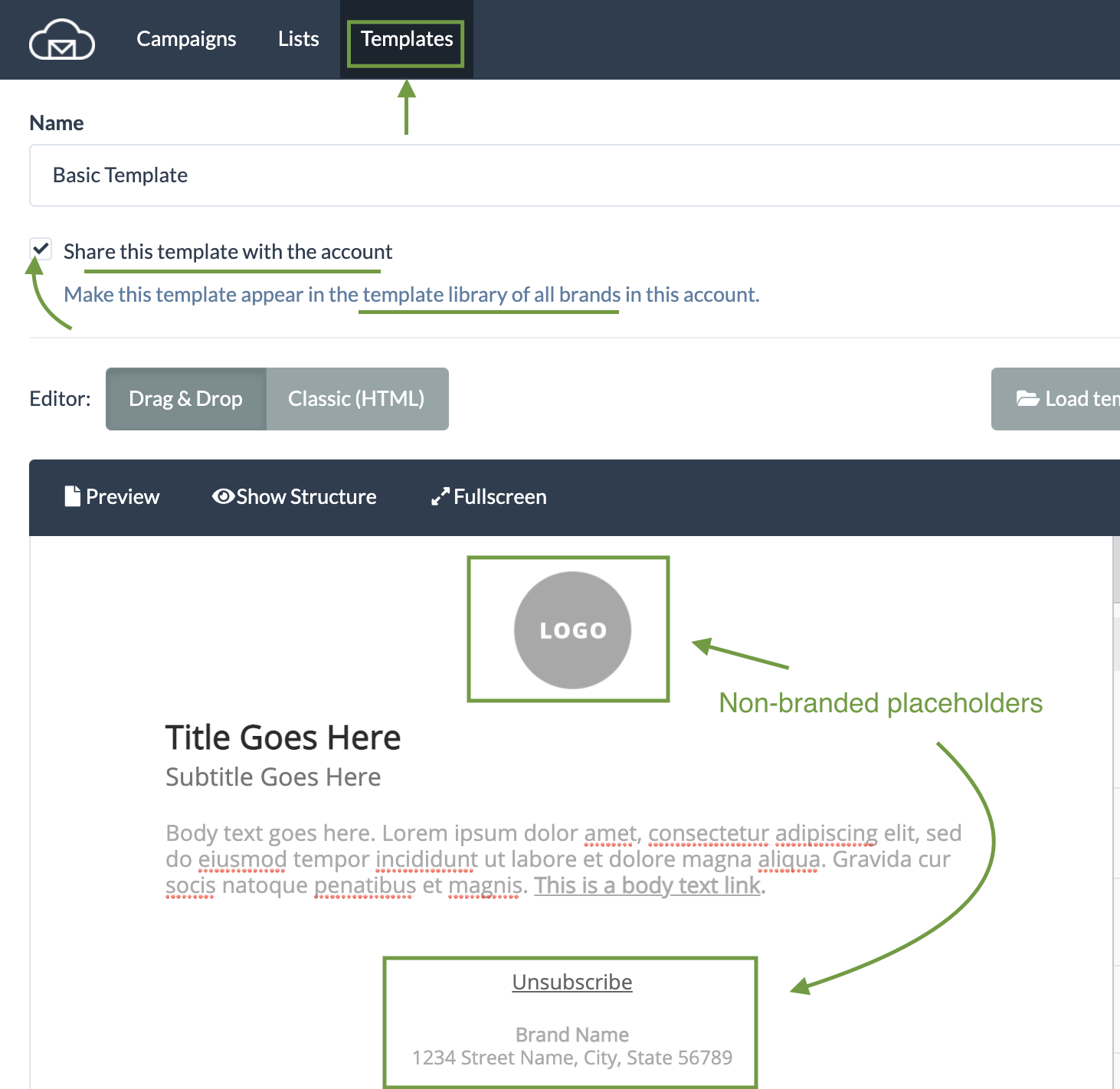
You can also use merge tags in a shared template to insert any brand properties into your template, for example brand logo or footer elements (e.g. street address or phone number).
Saved rows
Saved rows feature allows saving reusable rows into a library and adding them into new templates to create template variations faster. This feature is only available in our drag-n-drop template editor and can be used when working with both email and landing page templates.
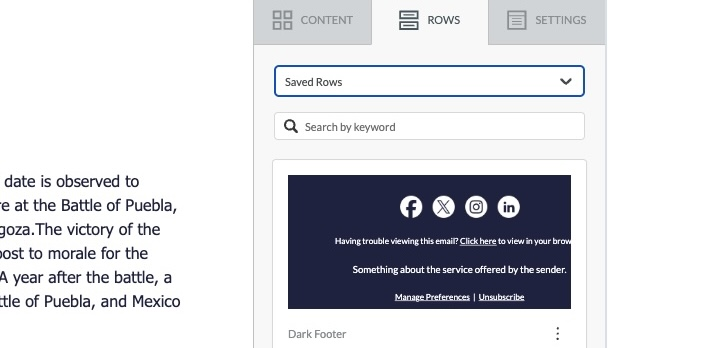
Saved rows are ideal for storing:
- Headers
- Footers
- Legal disclaimers
- Signatures
- Promotional modules used across campaigns
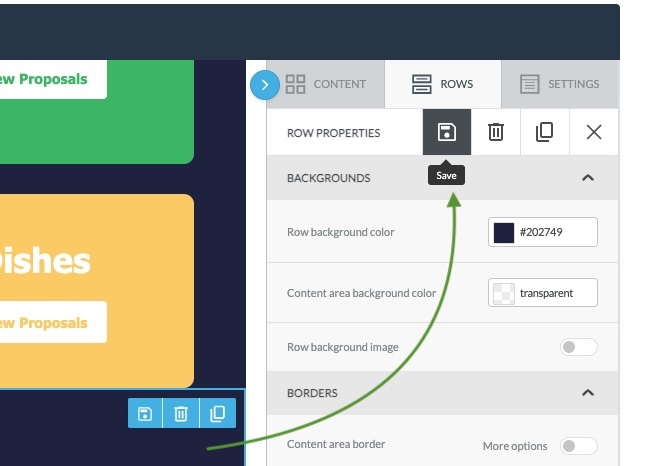
To save any row into your library, just select the row you want to save and click on the Save icon on the right side. Make sure to give is a good name, so it can be searched for later, e.g. “dark footer” or “simple header”
To access saved rows, use a dropdown under Rows tab and select Saved Rows.
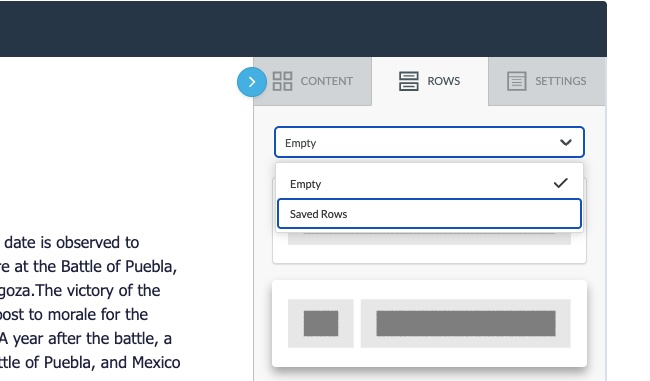
Once you select Saved Rows, you will see your saved rows appear in the list.
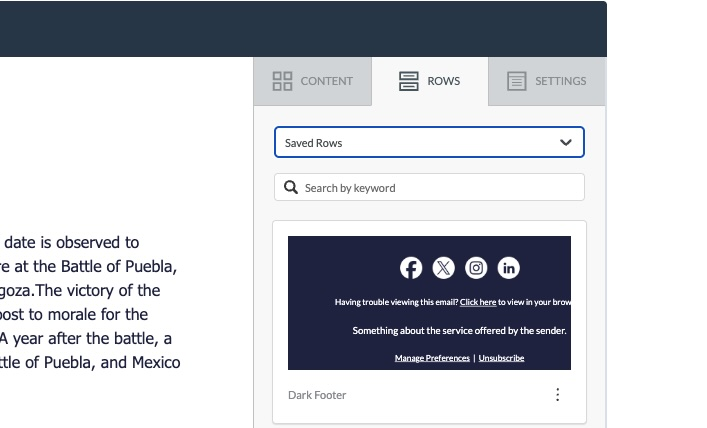
If you have a lot of rows you can use the search field to search for the row you need.
When a saved row is added into your template, a copy is created for each template, so it’s not a live element that can be auto updated in a central manner. If you need to make changes to a saved row you have to save a new version and delete the old one.
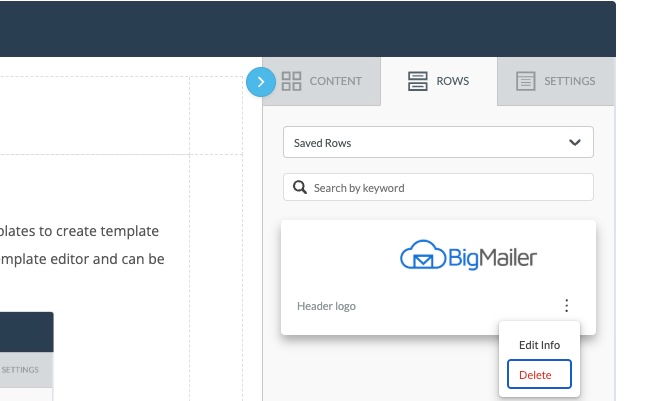
Saved rows are stored at a brand level, so all users with access to a brand can see saved rows saved under that brand.
Updated 2 months ago