

Connect to ChatGPT or Claude
Connect BigMailer to your own ChatGPT or Claude account.
Connect BigMailer to ChatGPT or Claude
BigMailer can connect to ChatGPT and Claude through its remote Model Context Protocol (MCP) server. Once connected, you can use BigMailer tools from conversations in your AI account.
Required BigMailer role: This integration is available only to BigMailer users with the Admin or Account Manager role. Your role controls whether you can access BigMailer through the connector; ChatGPT and Claude may also apply their own plan, account, or organization policies.
The BigMailer MCP server address is:
https://mcp.bigmailer.io/mcpWhen prompted to sign in, authorize BigMailer with the account you want to use. Review the permissions shown by your AI provider before approving access.
Connect BigMailer to ChatGPT
Use ChatGPT on the web. The exact menu labels can vary as OpenAI updates the interface. If your account or workspace does not show the custom MCP option, check with your ChatGPT workspace administrator or plan settings.
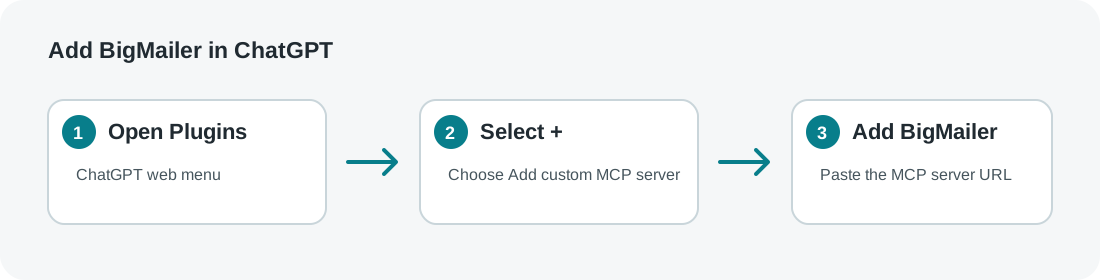
- Open ChatGPT and go to Plugins.
- Select the + button, then choose Add custom MCP server.
- Enter a name such as BigMailer. Add a description if you like.
- In the connection field, enter
https://mcp.bigmailer.io/mcp. - Configure authentication if prompted. Continue to the BigMailer sign-in or authorization screen and sign in to your BigMailer account.
- Review the security notice and the tools ChatGPT finds, then create the plugin/connector.
- Start a chat, choose BigMailer from the tools or plugins menu, and ask ChatGPT to use it.
ChatGPT may ask you to confirm before it performs an action. Check the requested action before approving it.
ChatGPT availability: Connecting custom MCP servers is available on ChatGPT web, subject to your ChatGPT plan and workspace settings. OpenAI currently documents custom MCP connections for Business and Enterprise/Edu; Pro accounts may connect custom servers with read/fetch permissions. Some workspace administrators restrict who can add them.
Connect BigMailer to Claude
Use Claude on the web. Remote connectors added to your Claude account can also be available in Claude Desktop and other Claude surfaces supported by your plan.
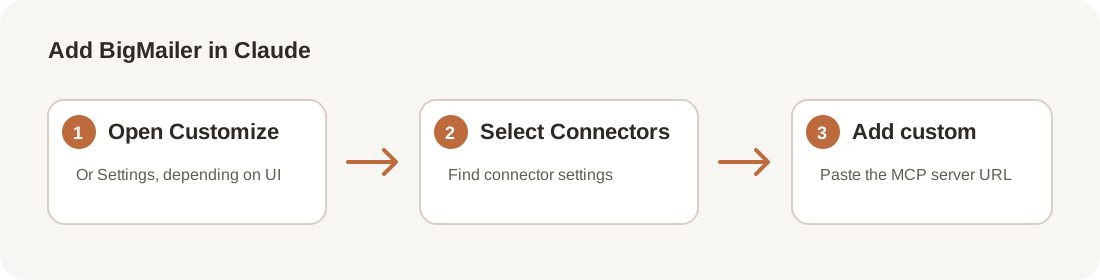
- Open Claude and go to Customize → Connectors. In some versions of the interface, connectors may appear under Settings → Connectors.
- If you have an individual plan, select + Add, then Add custom connector.
- If you use a Team or Enterprise organization, an Owner or Primary Owner may need to add the custom connector to the organization first. After that, find BigMailer in the connector list and select Connect.
- Enter BigMailer as the connector name.
- Enter
https://mcp.bigmailer.io/mcpas the remote MCP server URL, then continue. - Review the authentication settings Claude detects and continue. Choose the sign-in option Claude presents and authorize BigMailer with your BigMailer account.
- Select Add to finish.
- To use BigMailer in a conversation, select the + button in the chat composer, open Connectors, and enable BigMailer for that conversation.
Claude may ask you to approve tool actions. Review what it is requesting before allowing it.
If you can’t connect
- You don’t see the add option: Your ChatGPT workspace or Claude organization may restrict custom connectors. Ask its administrator to enable or add the connector.
- BigMailer denies access: Confirm that your BigMailer user has the Admin or Account Manager role, and make sure you authorized the correct BigMailer account.
- Sign-in or authorization fails: Close the authorization window and try again. Confirm that pop-ups are allowed and that you are signed in to the intended account.
- The connector is present but unavailable in chat: Select or enable BigMailer from the chat’s tools/connectors menu. Claude connectors may need to be enabled separately for each conversation.
Security and permissions
The connector lets ChatGPT or Claude call BigMailer tools on your behalf. Only connect to the official BigMailer server address above, sign in with your own account, and review any requested action before approving it. Your BigMailer role continues to determine what you can do in BigMailer.
Provider instructions
Updated about 1 month ago